Set User Rights
To define the rights of a user for a schedule, click on the user name in the administration view for user rights and select the command from the context menu.
The page for setting user rights is divided into different areas:
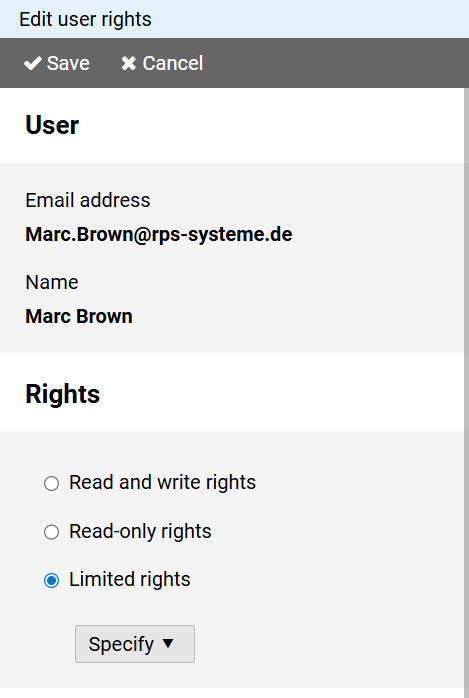
You can assign three types of rights to the user:
Read and write permissions: the user may view and modify all data.
Basically, only with these rights is it possible to create and delete groups and employees as well as to make changes to basic data (such as leave types, shift types or shift cycles).
Note: Users are not permitted to access the user administration.
Owner or administrator rights are required for this.
Read-only rights: The user has read access to all employees.
Changes to schedule data are not permitted.
Limited rights: User access is restricted to specific groups or individual employees.
To set the differentiated access rights, press the button.
Group access defines the access rights that apply to selected groups and their members.
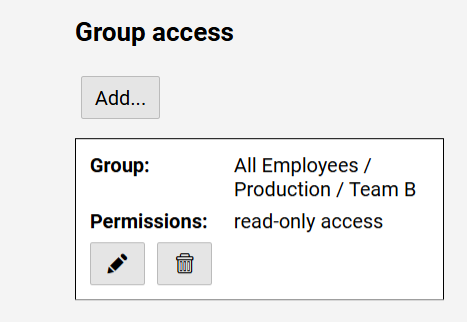
Press the button to select a group.
Pressing the allows you to specify the user rights to the group and its members.
Note: Group rights are inherited by subgroups.
Pressing the button removes the group setting.
Employee access defines the access rights that apply to selected employees.
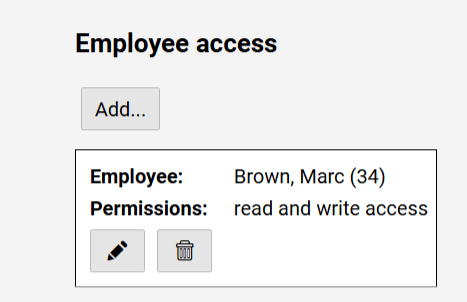
Press the button to select an employee.
Pressing the allows you to specify the user rights to the employee.
Pressing the button removes the employee setting.