Schichtplaner App User Manual
Table of Contents

Create an Employee

To create a new employee, press the button on in the command bar of the administration view for employees.

Note: If you want to use the properties of an existing employee as the basis for a new employee, click on the employee name in the employee administration view and select the Template for new employee... command from the context menu.

The page for creating an employee is divided into different sections:

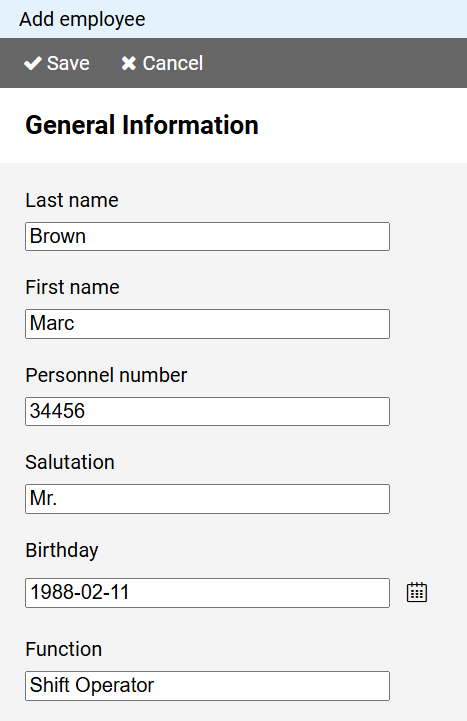
Employee - General Information

Only the last name is mandatory.

All other information is optional.

However, entering a unique personnel number can be useful, as this allows data records to be assigned to an employee during data import.

You can enter a job description in the Function field.

Just like by name and employee number, you can sort the employees on the screen by this function.
Employee - Colors

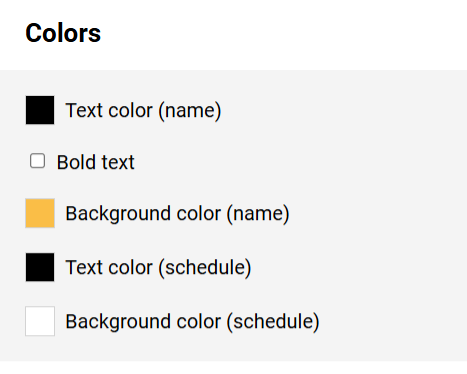
The information in this section determines how the employee name and entries belonging to the employee are formatted in the schedule.

The colors for the text (optionally in bold) and the background can be freely selected after pressing the color button.

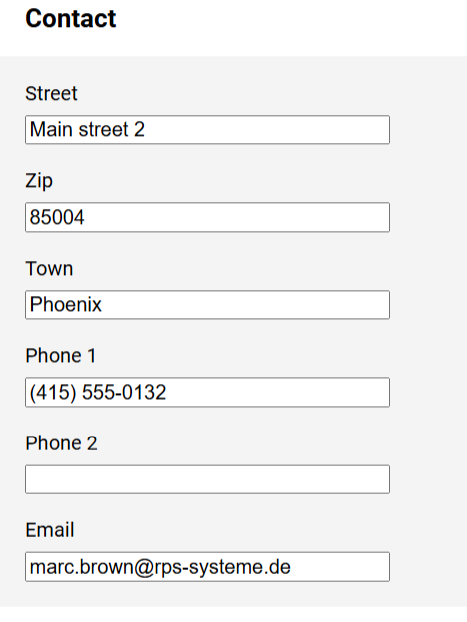
Employee - Contact

To ensure the employee can be contacted, you can specify their address and telephone numbers.

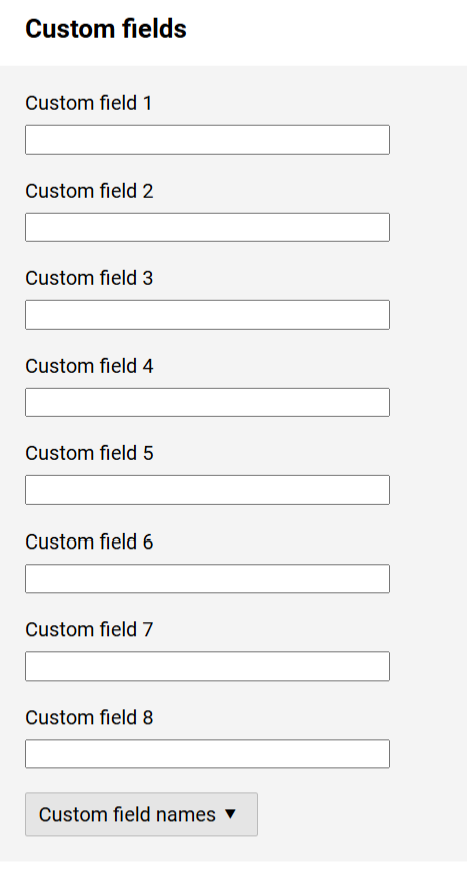
Employee - Custom Fields

Each employee has several custom fields where any text can be entered.

You can change the labels on these fields using the Custom field names button.

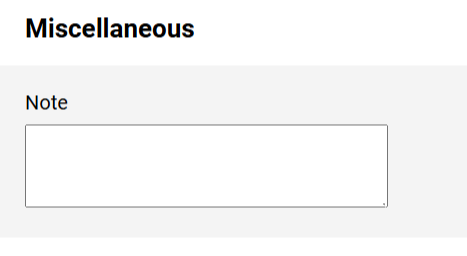
Employee - Miscellaneous

You can enter a multi-line note for the employee.

The length is limited to 1000 characters.