Group Memberships
You can assign employees to any number of groups.
Note: The top group (default name All Employees) includes all employees by default.
To manage an employee's group memberships, click the employee's name in the administration view for employees and select the command from the context menu.
A new page is displayed with a table listing all of the employee's group memberships.
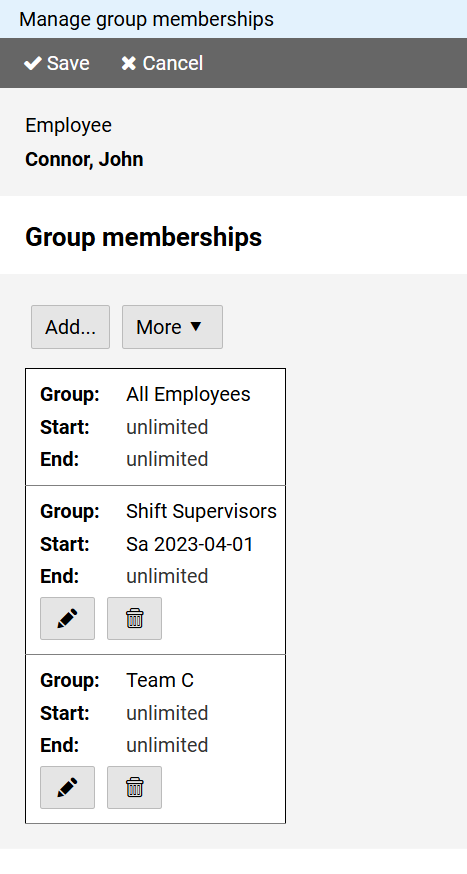
Press the button to assign another group.
You can specify a fixed date for the start and end of group membership or consider it unlimited.
Press the button to edit a table entry and the to delete an entry.