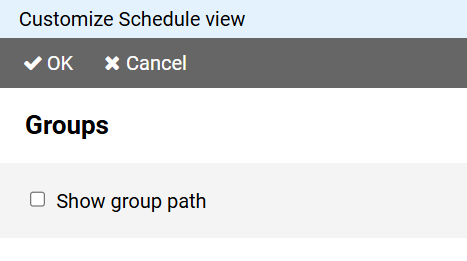
Select the Show group path option to display the parent groups of the selected group in the group bar before the name of the selected group.
You can customize the schedule view.
You can change the width of the name column containing the employee names.
If you are using the app with a mouse, position the mouse pointer over the dividing line between the name column and the plan.
Then press the left mouse button and drag the separator line to the desired position.
If you are controlling the app via a touchscreen, press the button on the command bar and select the command from the view menu.
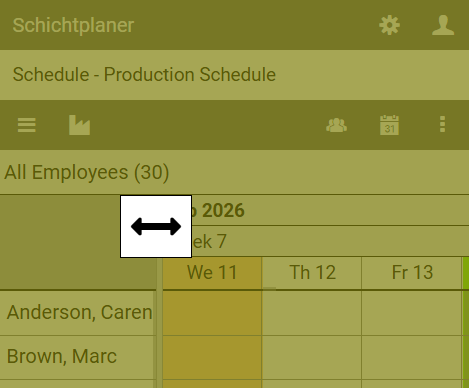
A symbol appears. Drag the symbol left or right to adjust the name column.
For further view customizations, press the button on the command bar and select the command from the View menu.
The page for customizing the view is divided into different areas:
Select the Show group path option to display the parent groups of the selected group in the group bar before the name of the selected group.
The schedule view always displays a limited period of time consecutively.
At the beginning and end, there is the option to display an earlier or later time period.
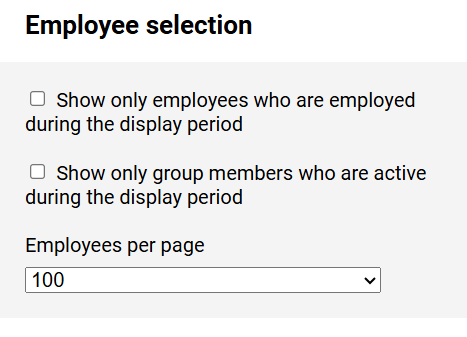
You can limit the selection of employees displayed within the currently valid time period
For performance reasons, only a limited number of employees are listed together.
If more employees need to be displayed for the selected group, there is an option to display additional employees at the top and bottom of the plan.
You can select the number of employees per page from the drop-down list.
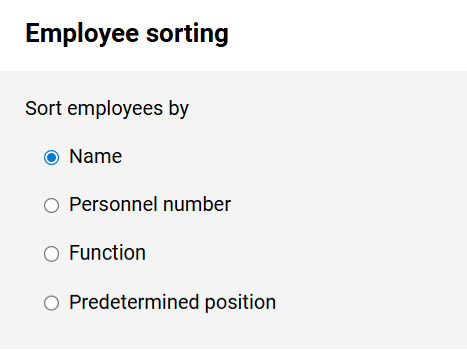
You have several options for the order in which the employees are displayed.
The option of pretermined position corresponds to the sorting that can be set in the employee view.