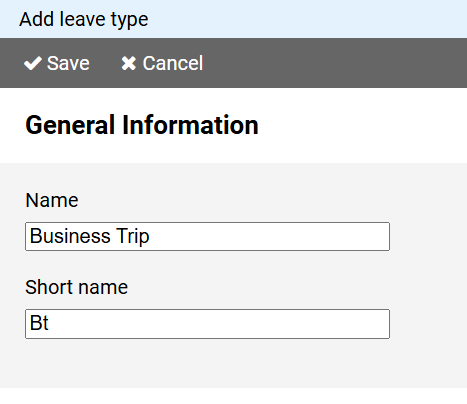
You must enter a unique name for the leave type.
In the short name field enter a short description for the leave type.
The short name will be displayed in the schedule as a representative of the leave type.
To create a new leave type, press the button on in the command bar of the administration view for leave types.
Note: If you want to use the properties of an existing leave type as the basis for a new leave type, click on the leave type name in the leave type administration view and select the command from the context menu.
The page for creating a leave type is divided into different sections:
You must enter a unique name for the leave type.
In the short name field enter a short description for the leave type.
The short name will be displayed in the schedule as a representative of the leave type.
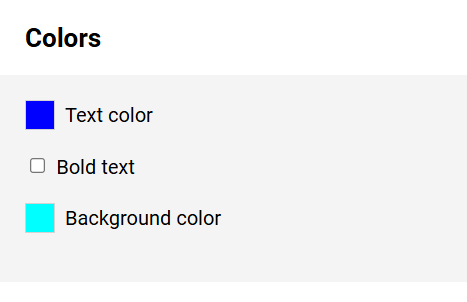
The information in this section determines how an entry belonging to the leave type is formatted in the schedule.
The colors for the text (optionally in bold) and the background can be freely selected after pressing the color button.
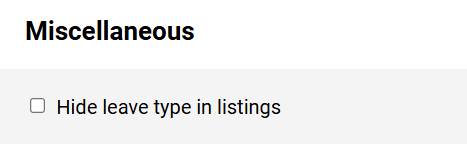
You can hide outdated or rarely needed leave types from lists by selecting the corresponding option.
Note: Absence entries belonging to a hidden leave type will still be displayed in the schedule.