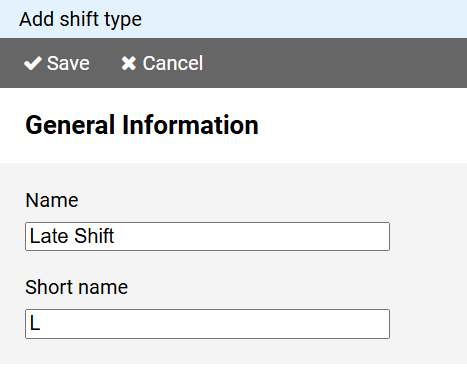
You must enter a unique name for the shift type.
In the short name field enter a short description for the shift type.
The short name will be displayed in the schedule as a representative of the shift type.
To create a new shift type, press the button on in the command bar of the administration view for shift types.
Note: If you want to use the properties of an existing shift type as the basis for a new shift type, click on the shift type name in the shift type administration view and select the command from the context menu.
The page for creating a shift type is divided into different sections:
You must enter a unique name for the shift type.
In the short name field enter a short description for the shift type.
The short name will be displayed in the schedule as a representative of the shift type.
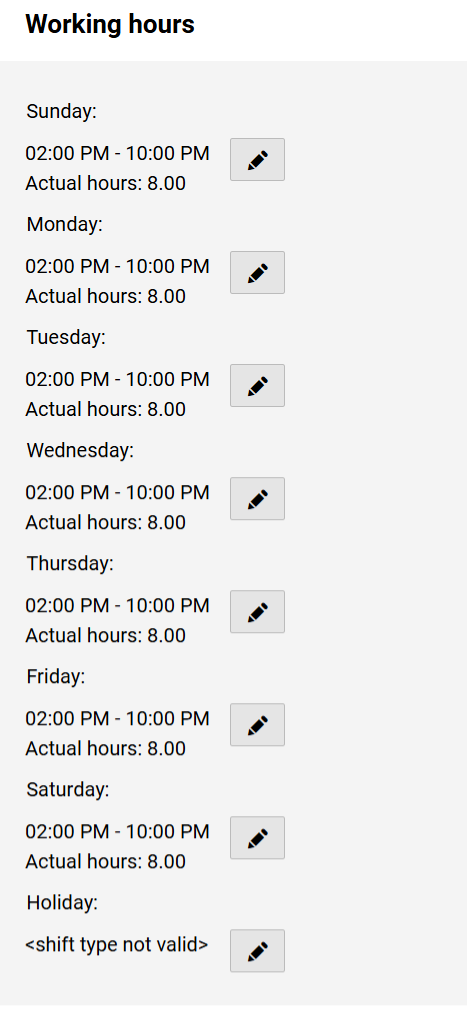
You can specify different working hours for all weekdays and public holidays.
The table lists the working hours for all days.
Press the button next to a day of the week to edit the times.
An input form will open.
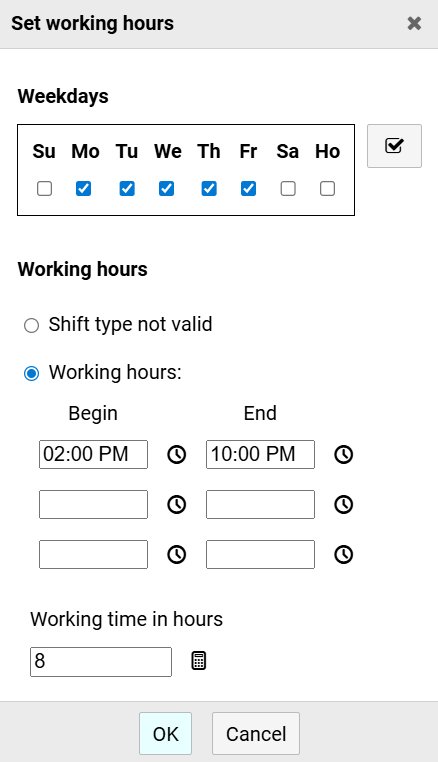
Select the weekdays for which the input in this form should apply.
Note: You can enter special settings for public holidays (Ho).
If the shift type should not be valid on the selected days, select the first option in the Working Hours group box .
If the second option is selected, enter the working hours in the input fields.
The total time can consist of up to three individual periods.
If the end time is not after the start time, it is assumed that a day change has occurred in between.
Example:
Start: 10:00 PM , End: 6:00 AM
The shift begins in the evening at 10 pm and ends the following morning at 6 am.
Note: The framework working time, i.e. the time from the start of the first individual period to the end of the last individual period, can be a maximum of 24 hours.
In the field Working time in hours you enter how many hours should be credited for a corresponding entry on an employee's actual hours account.
Notes:
The hourly value must be specified as a floating-point number. Convert minute values accordingly.
Example: 8 hours and 15 minutes equals 8.25 (=8+15/60) hours.
If you press the switch with the calculator symbol next to the input field, the working hours will be automatically calculated from the specified time periods.
However, you can also specify a different value to include, for example, setup or break times.
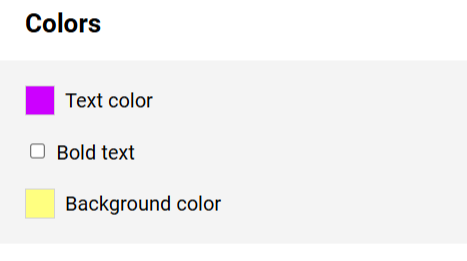
The information in this section determines how an entry belonging to the shift type is formatted in the schedule.
The colors for the text (optionally in bold) and the background can be freely selected after pressing the color button.
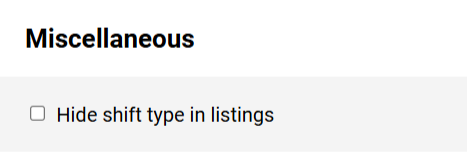
You can hide outdated or rarely needed shift types from lists by selecting the corresponding option.
Note: Shifts belonging to a hidden shift type will still be displayed in the schedule.