Manage Employees
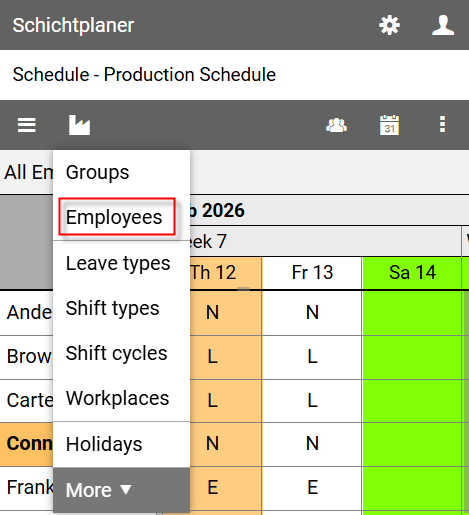
To show the administration view for employees press the button in the schedule view and select the command from the organization menu.
Administration View for Employees
The view lists all members of the group whose names appear above the list.
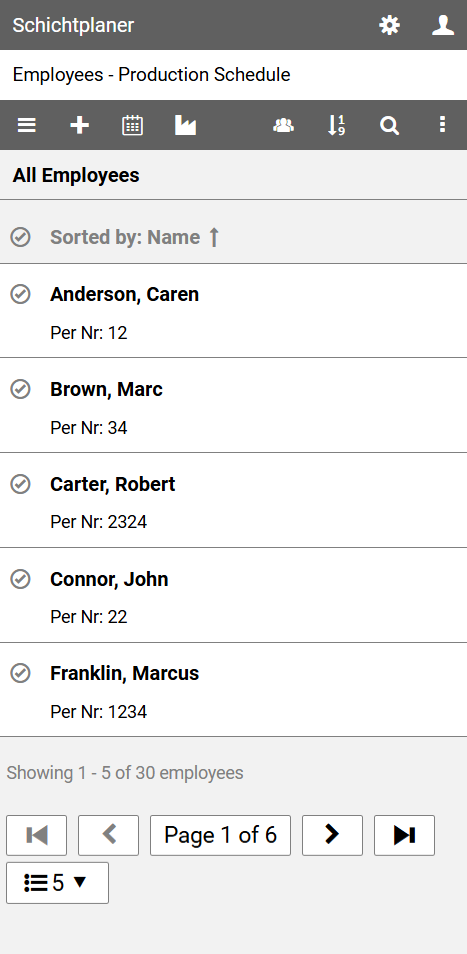
The command bar contains the following buttons:
opens the main menu with commands for editing the schedule properties, the schedule users and user rights
allows the creation of a new employee
displays the schedule view
opens the organization menu with commands for setting up the schedule.
selects the group whose members will be listed
allows you to define your own order for the listed employees
searches for employees with a specific name or personnel number
opens the view menu for further actions
Context Menu
Clicking on the name of an employee opens a context menu that allows access to specific actions.
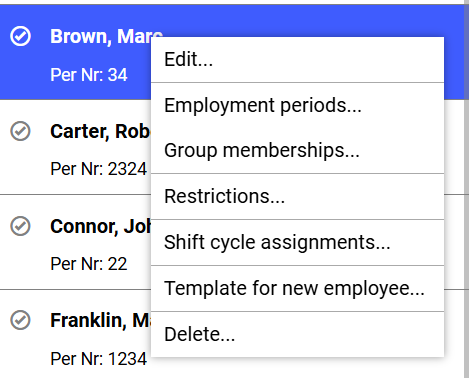
allows you to change the properties of the selected employee
divides the employee's employment into time periods.
assigns the employee to groups
determines whether a combination of shift types and days of the week is permitted
assigns shift cycles to the employee
allows you to create a new employee based on the selected employee
removes the selected employee after a security prompt
Multiple Selection
To edit or delete multiple employees at once click on symbol before the name of the leave types to be selected.
To select all displayed entries, click on symbol in the list header.
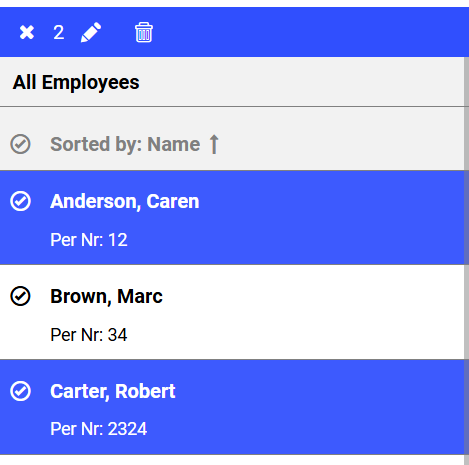
Then, on the command bar, press the button to edit the selected items or press the button to delete the selected items.
Pressing the cancels the selection.
Notes
If an employee is deleted, all associated entries (shifts, absences, etc.) are also deleted.
You can change all employee data at a later time, including names and employee numbers.
Please note, however, that changes (e.g., to group membership if no validity period is specified) may also have retroactive effects.