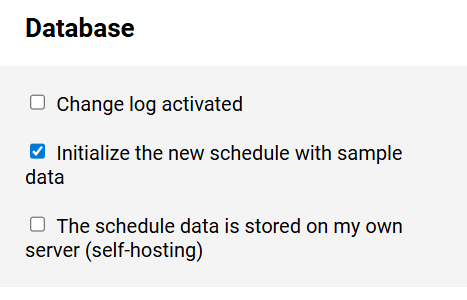
You can keep a change log for the schedule.
This is particularly useful when multiple users are involved in the planning
as it allows you to track which user made which changes.
Notes:
- Due to the large amount of data generated when maintaining the change log,
information about changes made more than a week ago may be deleted from
time to time.
- The change log can also be turned on or off at a later time.
To try out the shift schedule immediately after creation,
you can initialize it with sample data.
This way, the shift schedule already contains employees and
predefined shift and absence types.
You have the option of self-hosting the
schedule database, i.e., storing the database on your own database server.
Note:
The settings you need to configure for self-hosting are described
here.